SAP BAPI execution guide for Jitterbit App Builder
Overview
A BAPI (Business Application Programming Interface) is SAP's primary interface for reading and updating data in an SAP system, callable both from inside SAP and externally, over the RFC protocol or ALE/IDoc technology. BAPIs are defined in SAP's Business Object Repository (BOR) as methods of SAP business object types that carry out specific business functions, and are implemented as RFC-enabled function modules created in the Function Builder of the ABAP Workbench. For more background, see SAP's BAPI introduction.
This guide describes how to execute SAP BAPI function modules from App Builder: connect a data server to the SAP system, create local staging tables that mirror the BAPI's structure, populate them with the data to send, then trigger the BAPI's execution over RFC.
Prerequisites
Before you can execute BAPIs from App Builder, you need the following:
-
An App Builder release build that includes the additional SAP components. Each released build version has its own
thirdpartysapdownload, athttps://download.jitterbit.com/vinyl/<version>/vinyl-<version>-thirdpartysap-win.zip(for example,https://download.jitterbit.com/vinyl/4.66.0.39333/vinyl-4.66.0.39333-thirdpartysap-win.zipfor version 4.66.0+39333). This package places the SAP DLLs (Dynamic Link Libraries) App Builder needs to connect to SAP in theApp Builder/Binfolder. -
A data server connection to the SAP system you want to call BAPIs on, with Type set to SAP ABAP over RFC. This connection uses the CData ADO.NET Provider for SAP ERP, which in turn requires the next two prerequisites. See SAP data server connection if you haven't set one up yet.
-
SAP NetWeaver RFC SDK: Place the SDK's DLLs in
C:\Windows\System32on the server running App Builder. For more information on the SDK and where to download it, see SAP's NetWeaver RFC SDK documentation. -
Microsoft Visual C++ 2015-2022 Redistributable (x64): Install this Microsoft system file package on the server running App Builder. Download the package.
For more information about these dependencies, see the CData documentation for configuring ADO.NET provider dependencies.
SAP data server connection
To connect App Builder to the SAP system you want to call BAPIs on, configure a data server connection:
-
Select IDE > Data Servers.
-
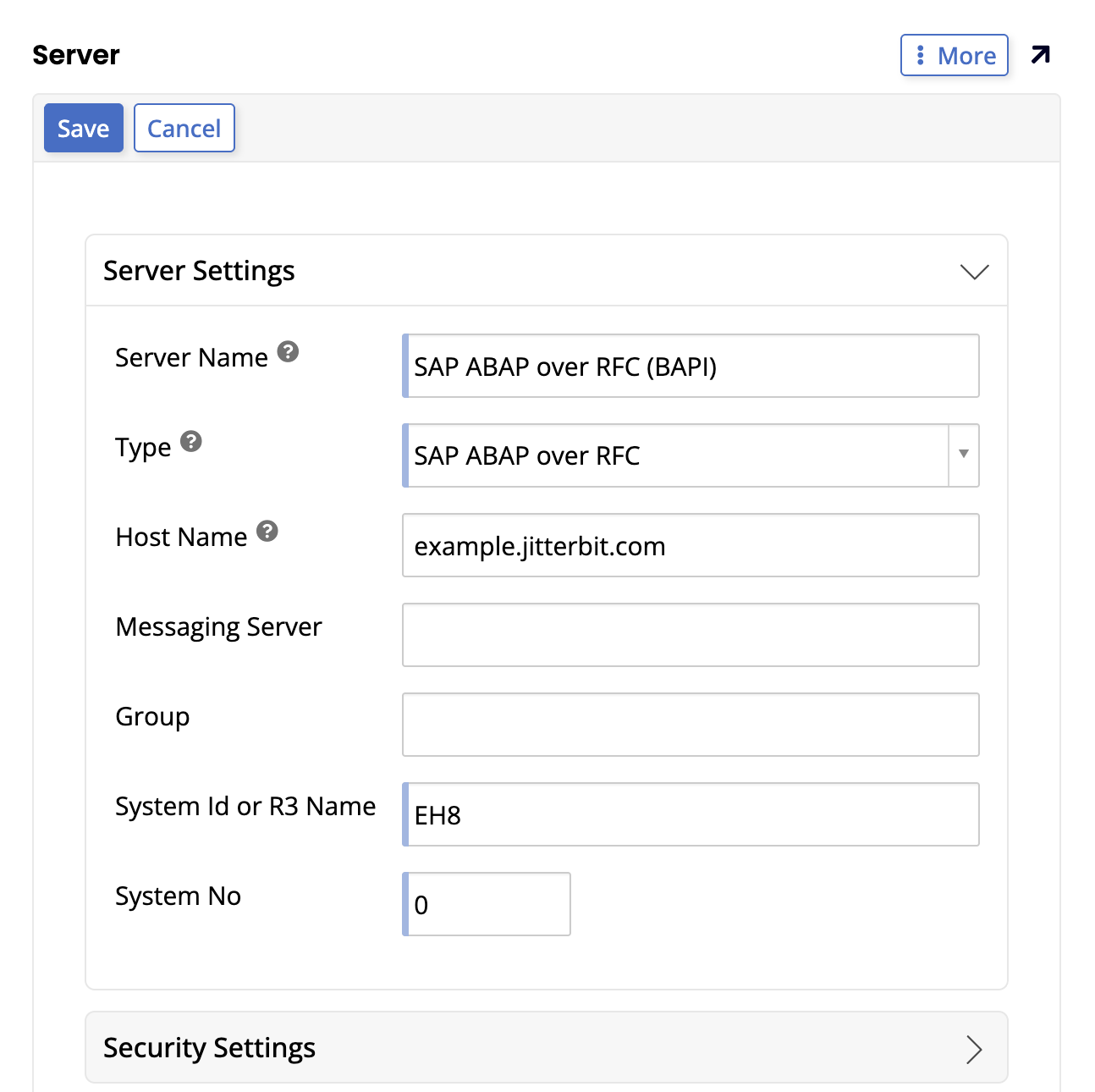
Click the + Server button. The Server page opens. Set values for the following:
-
In the Server Settings section:
- Server Name: Identifiable name for the server connection. For example:
SAP ABAP over RFC (BAPI). - Type: SAP ABAP over RFC.
- Host Name: The host name of the SAP application server. For example:
example.jitterbit.com. - (Optional) Messaging Server: The host name of the SAP message server, used together with Group for a load-balanced connection instead of connecting to a single application server.
- (Optional) Group: The SAP logon group to connect through, when using Messaging Server for a load-balanced connection.
- System Id or R3 Name: The SAP system's three-character System ID (SID). For example:
EH8. - System No: The SAP system's instance number. For example:
0.
- Server Name: Identifiable name for the server connection. For example:
-
In the Security Settings section:
- Client: The SAP client (mandant) number to log in to.
- User Name: The user name App Builder uses to authenticate with the SAP system.
- Password: The password for that user.
-
In the Staging section:
- (Optional) Data Source: The local data source where your BAPI staging tables live.
-
(Optional) Description: Enter a description for this connection.
-
-
Click the Save button.
-
Expand Testing, then click the Test Connection button to verify the connection.
Finding custom function modules
By default, the SAP data source's Import Pattern only surfaces stored procedures matching BAPI*. To find and import a custom function module, such as one with a Z prefix, add a StoredProcedureFilter advanced property to the connection. For example, StoredProcedureFilter=Z* additionally surfaces procedures beginning with Z.
Note
If a function module is not returned by Import Pattern, or executing it fails with a Procedure not found error, confirm that its name is covered by the connection's configured StoredProcedureFilter value.
BAPI staging tables
To pass data to SAP, App Builder compiles it into local staging tables before executing a BAPI. Each component of the BAPI function module (its import parameters, export parameters, and any parent or child structures) has its own staging table, with columns that hold the values the module expects.
Alongside these BAPI parameter columns, every staging table also needs a small set of App Builder-specific columns, prefixed with _, that link the staging tables together during execution. App Builder doesn't send these columns to SAP; it uses them only to stage the execution. Once the data is staged and ready, an RFC action executes the BAPI, using the _id column to determine which record set to pass.
Note
App Builder logs every SAP connection and execution, along with BAPI-specific parameter data, to the Database Logs.
Create local staging BAPI tables
Create a local staging table for each component of the BAPI you want to execute, either manually or by importing the structure using the Import Pattern field on the SAP data source (see Finding custom function modules if the function module you need doesn't appear).
A BAPI's import parameters (data sent from App Builder to SAP) and export parameters (data returned from SAP) often span more than one structure: a parent component holding the highest-level data, and one or more child components holding lower-level data, typically including a /RETURN child component that returns success or error messages. If you create the staging tables manually, you need a clear understanding of this structure and of the BAPI's own parameters, since App Builder relies on it to execute the BAPI correctly.
Name each child staging table after its parent; for example, a parent table named BAPI_PO_CREATE1 and a child table named BAPI_PO_CREATE1/POHEADER. Then add the following columns to each staging table:
-
Add an
_idcolumn, set to the UUID data type, and select Primary Key and Auto Generated, so App Builder can uniquely identify each staged record. -
If the table is a child component, add an
_ParentIdcolumn, also set to UUID, and define a many-to-one relationship to the parent table, linking its primary_Idcolumn to this table's_ParentIdcolumn. -
If the order in which records execute matters, add an
_indexcolumn to hold an indexing value App Builder can reference during execution. -
Add any other local foreign-key or audit columns you need, prefixed with
_, to tie BAPI records back to your own data model. For example,_POHeaderIDlets you query staged BAPI data for a local PO record, and_ExecutedOntracks execution history. -
Add the BAPI's own import and export parameter columns, such as
PURCHASEORDER,PO_ITEM,DELIVERY_DATE, orQUANTITY, reflecting the function module's structure.
Execute a BAPI
Once your staging tables are populated with data, trigger the BAPI's execution over RFC by registering an RFC action on a business object or table's event, from App Workbench > Rules. In the action's RFC field, select the SAP function module to call. App Builder provides four built-in options:
-
BAPI_OBJCL_CHANGE -
BAPI_OBJCL_CREATE -
BAPI_OBJCL_DELETE -
BAPI_TRANSACTION_COMMIT
BAPI_TRANSACTION_COMMIT is listed last because it commits whichever of the other three actions already ran.
BAPI function module examples
The following are a few of the many BAPI function modules you can execute from App Builder. The Child components column lists the parent function module's child components, where applicable.
| Function module | Description | Child components |
|---|---|---|
BAPI_PO_CREATE1 |
Used to create a new PO. | /POHEADER, /POHEADERX, /POITEM, /POITEMX, /POSCHEDULE, /POSCHEDULEX, /POCOND, /POCONDX, /POEXPIMPITEM, /POEXPIMPITEMX, /POTEXTHEADER, /EXTENSIONIN |
BAPI_PO_CHANGE |
Used to update values on an existing PO. | /POHEADER, /POHEADERX, /POITEM, /POITEMX, /POSCHEDULE, /POSCHEDULEX, /POCOND, /POCONDX, /POEXPIMPITEM, /POEXPIMPITEMX, /POTEXTHEADER, /EXTENSIONIN, /POPARTNER |
BAPI_PO_RELEASE |
Used to release a PO after manipulating it. | — |
BAPI_PO_GETDETAIL |
Used to retrieve the Header Notes and Text values on the PO. | _PO_GETDETAIL/RETURN, PO_HEADER_TEXTS |
BAPI_SALESORDER_CREATEFROMDAT2 |
Used to create Sales Orders. | /ORDER_HEADER_IN, /ORDER_PARTNERS, /ORDER_ITEMS_IN, /ORDER_SCHEDULES_IN, /RETURN |
BAPI_CONTRACT_CREATEFROMDATA |
Used to create Contracts. | /CONTRACT_HEADER_IN, /CONTRACT_PARTNERS, /CONTRACT_PARTNERS, /CONTRACT_ITEMS_IN |
BAPI_EXCHANGERATE_GETDETAIL |
Used to retrieve currency exchange rates. | — |
Z_ADAPT_DATA_EXTRACT |
A custom function used to pull investment plan information. | — |
Troubleshooting
If a BAPI or custom function module fails to execute with a Procedure not found error, confirm the following:
-
The prerequisites (the SAP NetWeaver RFC SDK and the Microsoft Visual C++ Redistributable) are installed on the server running App Builder.
-
The function module's name is covered by the data server connection's
StoredProcedureFilteradvanced property. See Finding custom function modules. -
The custom function module exists and is active on the target SAP system. A custom function module (for example, one with a
ZorZZprefix) is only available on a given SAP system after the transport containing it has been imported there. Check with the SAP administrator, or inspect the function module directly using Function Builder (SE37) or the Object Navigator (SE80), to confirm it is present and active. If it is not, the corresponding SAP transport must be imported into that environment before it can be called. -
The SAP user configured on the data server connection has
S_RFCauthorization for the function module. TheS_RFCauthorization object is checked by function group rather than by individual function module name, so the user's SAP role must grantS_RFCwithRFC_TYPEset toFUGRandRFC_NAMEset to the function group that contains the custom function module, not a wildcard on the module name itself. -
Enable data logging to generate log files and data you can download and inspect.
-
Refer to the CData ADO.NET Provider for SAP ERP documentation for detailed information.