IBM DB2i connection guide for Jitterbit App Builder
Overview
IBM DB2 for i (DB2i) is the database on IBM i systems, formerly known as AS/400 and iSeries. This guide describes the prerequisites and instructions for connecting App Builder to an IBM DB2i database server.
Prerequisites
- You need an IBM DB2i series server to connect to.
- The App Builder server must run on Windows.
- A Db2 Connect Server license is required to connect to Db2 for IBM i servers.
- A valid IBM ID is required to download and install the IBM i Access Client Solutions (ACS) Windows Application Package. If you don't already have one, you can create an IBM account for free.
- Port 446 (the DRDA port) must be open between the App Builder server and the DB2i server. A blocked port causes the connection test to fail with
An error occurred while testing the connection.
Install the IBM i Access Client Solutions package
Install the ACS package on the App Builder server, so App Builder has the driver it needs to communicate with the DB2i server:
- Go to IBM i Access - Client Solutions, sign in with your IBM ID, and download
IBMiAccess_v1r1_WindowsAP_English.zip. - Extract the files on the App Builder server.
- In the Image64a folder, run setup.exe and accept the default Typical setup type.
- Restart the server.
Add a DB2i data server
After installing the ACS package, configure the DB2i data server in App Builder:
- Select IDE > Data Servers.
-
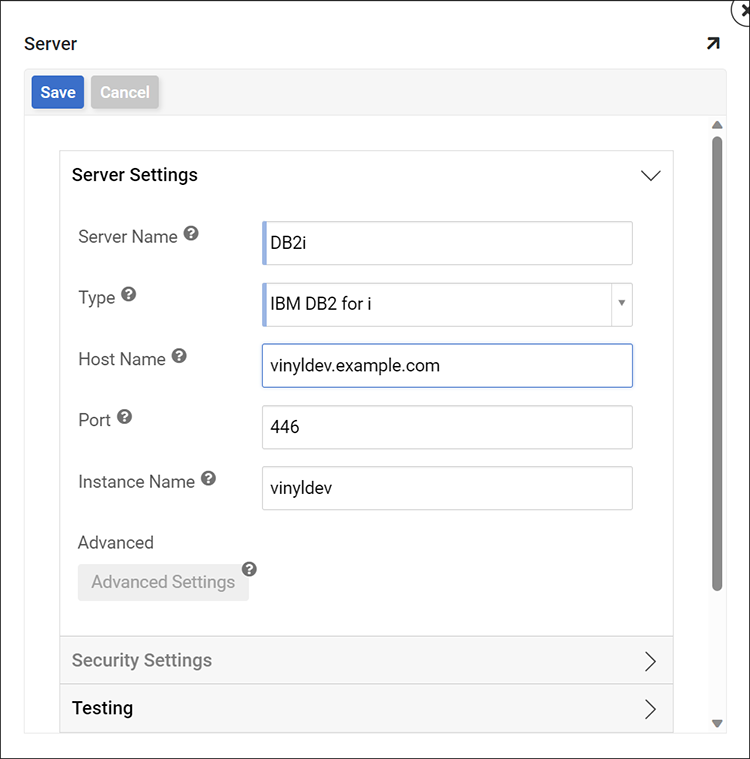
Click the + Server button. The Server page opens. Set values for the following:
-
In the Server Settings section:
- Server Name: Identifiable name for the server connection. For example:
DB2i. - Type: IBM DB2 for i.
- Host Name: The host name of the DB2i server. For example:
example.jitterbit.com. - Port: The port number for the DB2i server. Enter
446(the DRDA port). - (Optional) Instance Name: If you installed the server with a named instance, enter the name supplied for that instance. For example:
db2idev.
- Server Name: Identifiable name for the server connection. For example:
-
In the Security Settings section:
- User Name: The DB2i user name.
- Password: The DB2i user's password.
-
(Optional) Description: Enter a description for this data server.
-
-
Click the Save button.
- Expand Testing, then click the Test Connection button to verify the connection.
Troubleshooting
If the ACS package isn't installed on the App Builder server, testing the connection to your DB2i server returns the following error:
An unexpected exception occurred. Type: System.DllNotFoundException, Message: Unable to load DLL 'cwbdc.dll': The specified module could not be found. (Exception from HRESULT: 0x8007007E).
See Install the IBM i Access Client Solutions package to install it.