Open a file from a panel in Jitterbit App Builder
Overview
To link a button to a specific file for download, capture the file's download URL using your browser's developer tools, then set that URL as the button's External Link value. This page assumes you already have a File System configured for your application, along with a page that displays its content; see Create a local file system or network file system if you haven't set this up yet.
Step 1: Capture the file's download URL
Use your browser's network inspector to capture the exact URL App Builder generates when downloading the file you want to link to.
- Open Google Chrome and navigate to your App Builder app.
- Navigate to the page that displays your File System's content. For example: File Browser.
-
Open Chrome's developer tools:
- Select the Chrome menu in the top-right corner of your browser window, then select More Tools > Developer Tools.
- Alternatively, on Windows, right-click the File control on the page and select Inspect.
-
Click the Network tab.
- Click the Clear button (the cancel icon in the upper left) to clear the existing log.
- Confirm Record network log is enabled (the circle icon in the upper left turns red when recording).
- On the App Builder page, click the download link for the file you want to link a button to. For example:
registrant_details_report.csv. -
Click the same icon again to stop recording:
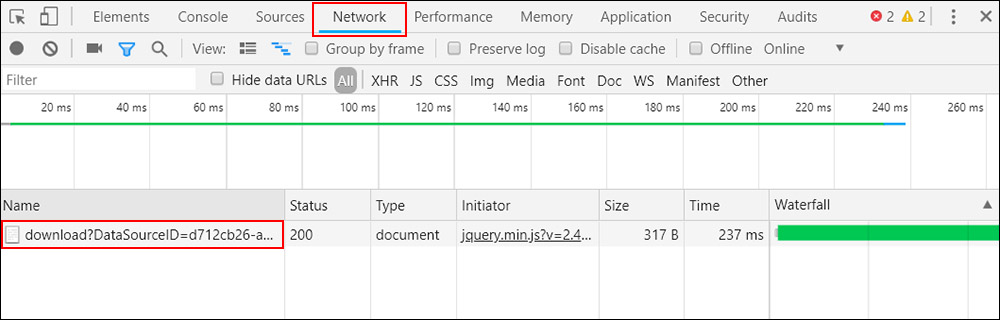
-
Right-click the entry in the Name column, then select Copy > Copy Link Address.
-
Paste the copied link into a text editor. It follows this format:
{{Server}}/service/control/{{ControlID}}/table/{{TableID}}/file/{{FileID}}/download?DatasourceID={{DataSourceID}}&Directory={{Directory}}&Name={{FileName}}For example, the link address for the file used in this example (with the server name omitted) looks like this:
service/control/d3911c1b-6696-4476-90ac-ec8b843632f8/table/a1bec3a8-d760-4751-b89d-0470885d142f/file/2b24d775-146f-4d04-aa89-0891845816a6/download?DataSourceID=d712cb26-a875-48db-8d8b-90d90ea9db69&Directory=&Name=registrant_details_report.csv&%24timeZoneOffset=-300&%24timeZone=America%2FNew_York
Step 2: Link a button to the file
With the download URL captured, set it as a button's External Link value so clicking the button downloads the file.
Note
You can use dynamic substitution for any part of the URL, such as the file name or directory.
-
Navigate to the control, using either the Live Designer or the App Workbench:
- From the app preview, open the page containing the button and select Action Drawer > Live Designer.
- From the App Workbench, open the Pages tab, then in the Pages panel, locate the page containing the button and either double-click its row or click the Open record icon. In the Page Panel Layout panel, find the panel that houses the button and click Controls.
-
Select the button control.
- Set External Link to the URL captured in Step 1, with the server name removed so the link works across your Development, QA, and Production environments.
- (Optional) Set Link Target to Self, so the file opens in the current window instead of a new one.
Refresh the application view to confirm the button now opens the file.