Complex REST API structures in Jitterbit App Builder
Overview
By default, a GET request against an App Builder REST API resource returns data from a single table. App Builder's REST API also supports complex structures: nesting data from related tables into a single JSON response, instead of requiring the caller to make a separate request for each related table.
For example, a customer resource could nest its related orders, and each order could in turn nest its items, so a single GET request against customer returns a customer along with their orders and each order's line items, all in one response.
Note
Complex structures are only supported for GET operations. Other HTTP methods, such as POST and PUT, are not supported.
This page covers:
-
Add a child node
Nest a table's data under an existing resource or node. -
Node parameters
The properties available on every node, set while adding or editing one. -
Node fields
The fields available on a node, and how they control the node's JSON output. -
Query a nested structure
How the$fieldsand$expandquery parameters behave once a resource has a nested structure.
Add a child node
Once you've published a resource for your root resource, you nest additional data under it by adding child nodes. Each node you add becomes a level in the resulting JSON structure, and can itself have further child nodes, so you can nest data as deeply as your data model requires.
-
Go to IDE > REST APIs.
-
The REST APIs tab lists all the current endpoints in the Services panel. Locate the tile belonging to the resource you are looking for and click its chevron icon to open that resource's REST API page.
-
Locate the endpoint you want to add child nodes to in the Resources panel. Click its details icon to see the Resource dialog.
-
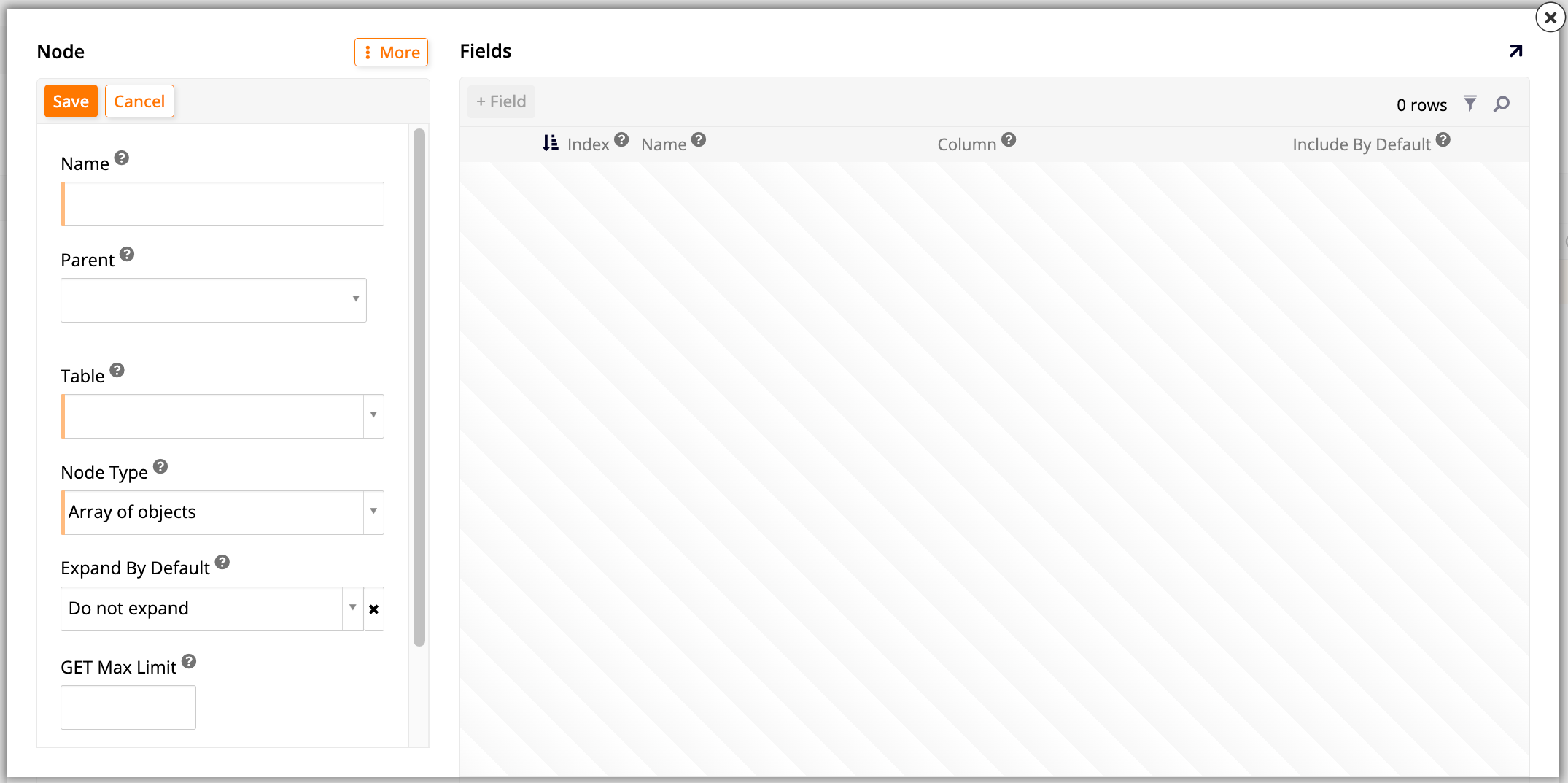
In the Nodes tab, click + Node. The Node dialog opens:
-
Set the new node's parameters, including which parent node it nests under and which table it retrieves data from.
-
Click Save. The Fields panel becomes available for this node.
-
In the Fields panel, click + Field to add and configure the node's fields.
-
Repeat steps 4 through 7 as needed to nest additional child nodes, including under the node you just created, to nest a structure more than one level deep.
Node parameters
Every node, whether a resource's own implicit root node or a child node you add, has the following properties, which control how that level of the structure is retrieved and represented in the response:
| Name | Description |
|---|---|
| Parent | The parent node in the hierarchy. |
| Name | The name of this node in the tree structure. The name can include forward slashes to nest the structure even deeper, without having to create an intermediate node for every level. |
| Table | The table to retrieve data from. |
| Node Type | The type of node.
|
| Expand By Default | Determines whether the node's data is automatically included in the response. Callers can override this using the $expand query parameter.
|
| GET Max Limit | The maximum limit of items that can be returned in a GET request, regardless of what the caller requests. If NULL, the default max value for the REST API is used. |
| Bindings | Sets up the bindings between the parent and child nodes, so App Builder knows which parent column corresponds to which child column when nesting the data. Once you save the node, a link icon appears next to Parent; click it to open the Bindings dialog, then map each parent column to its corresponding child column. |
Node fields
Each field you add to a node's Fields panel controls one piece of data in that node's JSON output:
| Name | Description |
|---|---|
| Index | The field's position in the node. |
| Name | The object key used for this field in the JSON document. Field names must be unique within a given node, and should be safe for use as JSON keys: avoid spaces and punctuation. |
| Column | The table or business object column that backs the field. |
| Include By Default | Whether the field is included in the document by default. Callers can override this using the $fields query parameter. |
Query a nested structure
Once a resource has a nested structure, two existing REST URI convention query parameters behave differently when a caller queries it:
-
$fieldsaccepts a path to a child table, so callers can select fields from nested data instead of only the root table:Value Selects details/*All fields of the detailschild table.details/nameJust the namefield of thedetailschild table.*All fields in all tables. -
$expandis a true/false parameter that lets a caller override a node's Expand By Default setting, for both item and collection requests.$expand=trueexpands the node regardless of its default;$expand=falsesuppresses expansion regardless of its default.