Export and import APIs in Jitterbit API Manager
Introduction
From the APIs page, you can export or import APIs to migrate them into other environments or organizations as needed. You can work with a single custom API, OData API, or proxy API, or with a group of APIs.
Export APIs
You can export APIs individually or in groups to migrate them to other environments or organizations.
Export a single API
Choose the export method based on your current view:
- List view: Hover over the API's Actions column and click Export.
- Tile view: Click the actions menu and select Export.
Selecting Export downloads the API to a file named apis-export.apk.
Export multiple APIs
To export multiple APIs, click Export from the APIs page to open the configuration screen.
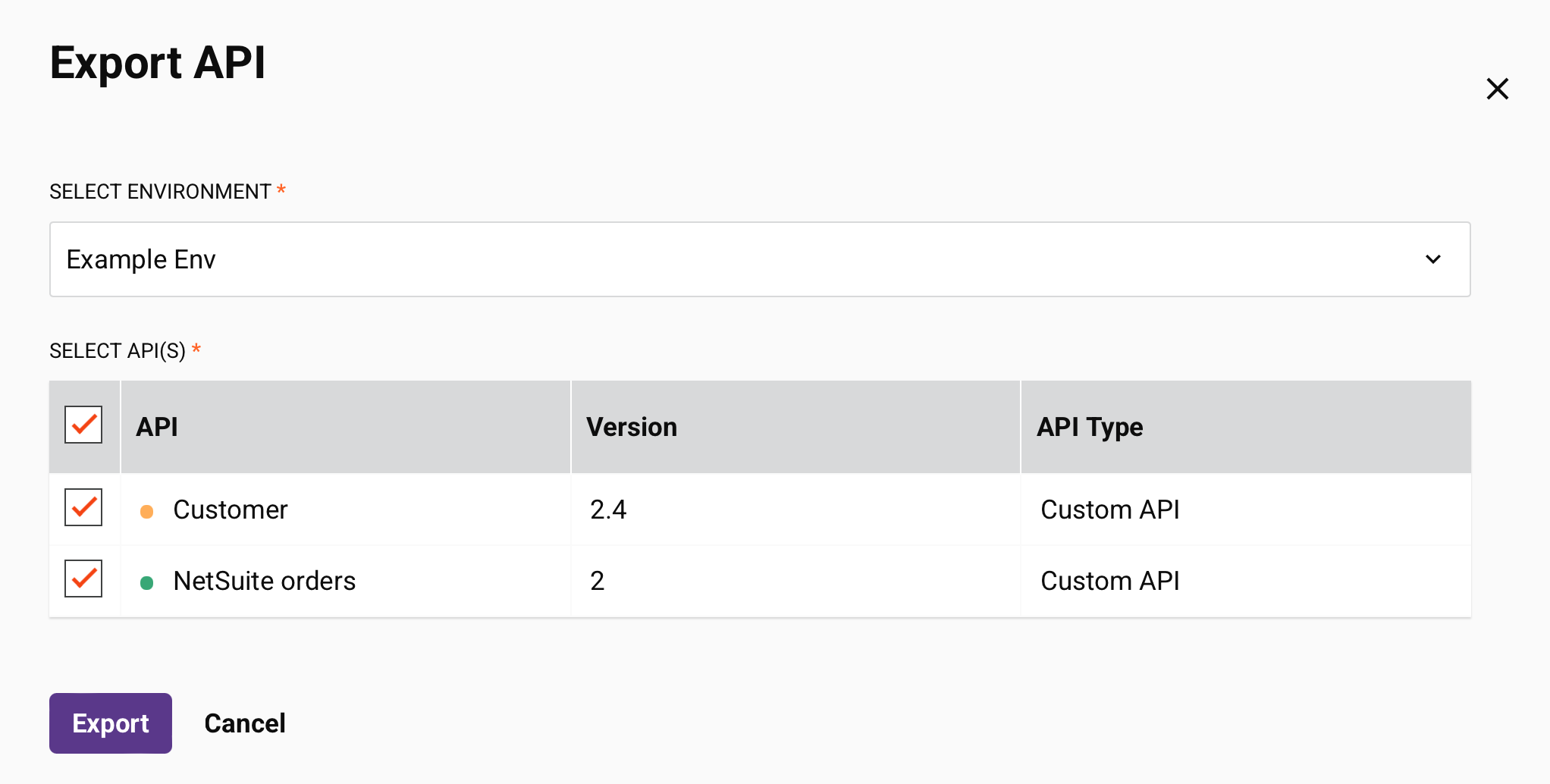
Configure the following settings to export a group of APIs:
-
Select environment: Use the menu to select the environment of the APIs to be exported. You can type any part of the environment name into the menu to filter the list of environments. The menu results are filtered in real time with each keystroke.
-
Select APIs: After you select an environment, a list of all APIs within that environment is displayed.
-
Select: Select the APIs to export. Use the checkbox in the header column to add all APIs at once.
-
API: Shows the name of the API. The color of the icon to the left of the API name indicates the category of the API status:
Icon Color Category 
Green The API is published. 
Yellow The API is published with a draft. 
Open Green The API is a draft. -
Version: Shows the version of the API, as entered during API configuration.
-
API Type: Shows the type of API (custom, OData, or proxy).
-
-
Export: Click to start a download of the selected APIs to an APK file named
apis-export.apk. A dialog indicates whether the export was successful and displays a list of the APIs successfully exported. -
Cancel: Click to cancel the export and return to the APIs page.
Import APIs
Important
The supporting projects, operations, and entities must exist in the destination environment for the APIs to function properly.
To import APIs, click Import from the APIs page.
Step 1: Select and configure APIs
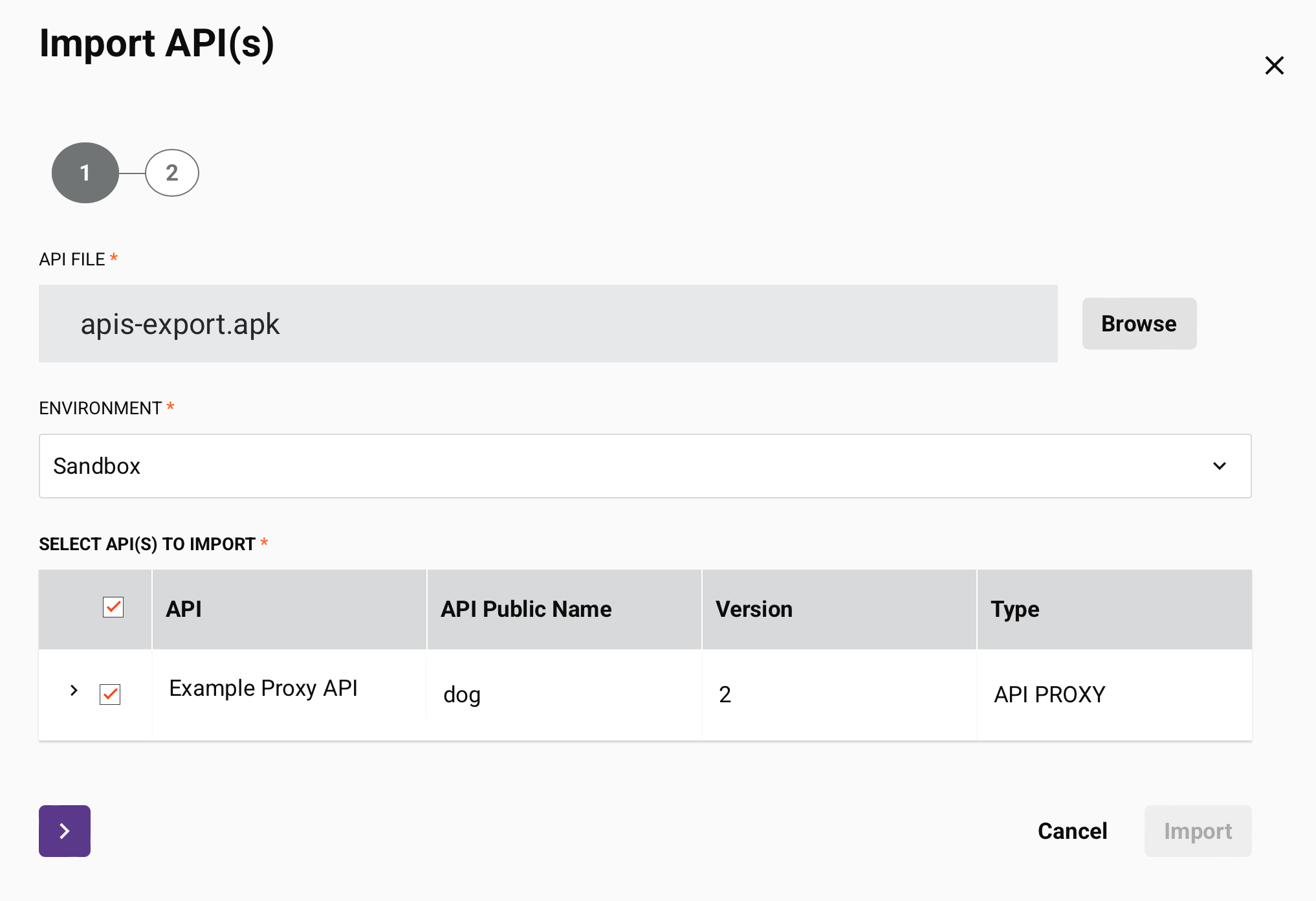
In this step, you select the APK file, choose the destination environment, and configure the APIs to be imported.
-
API file: Click Browse to browse to an APK file that you previously exported from API Manager.
-
Environment: Use the menu to select the environment you want to import the APIs into. You can type any part of the environment name into the menu to filter the list of environments. The menu results are filtered in real time with each keystroke.
Select and configure APIs to import
After you select an APK file, select the APIs to be imported into the selected environment.
-
Select: Select the APIs to import. Use the checkbox in the header column to select all APIs at once.
-
API: Shows the name of the API.
Note
An error icon appears next to the API name when the combination of API Public Name and Version already exists in the destination environment. If you select an API with an error for import, the Next button is disabled. To resolve the error, edit one or both of those values in the additional settings (described below).
-
API Public Name: Shows the Service Root of the API service URL.
-
Version: Shows the version of the API.
-
Type: Shows the type of API (custom, OData, or proxy).
Configure additional settings
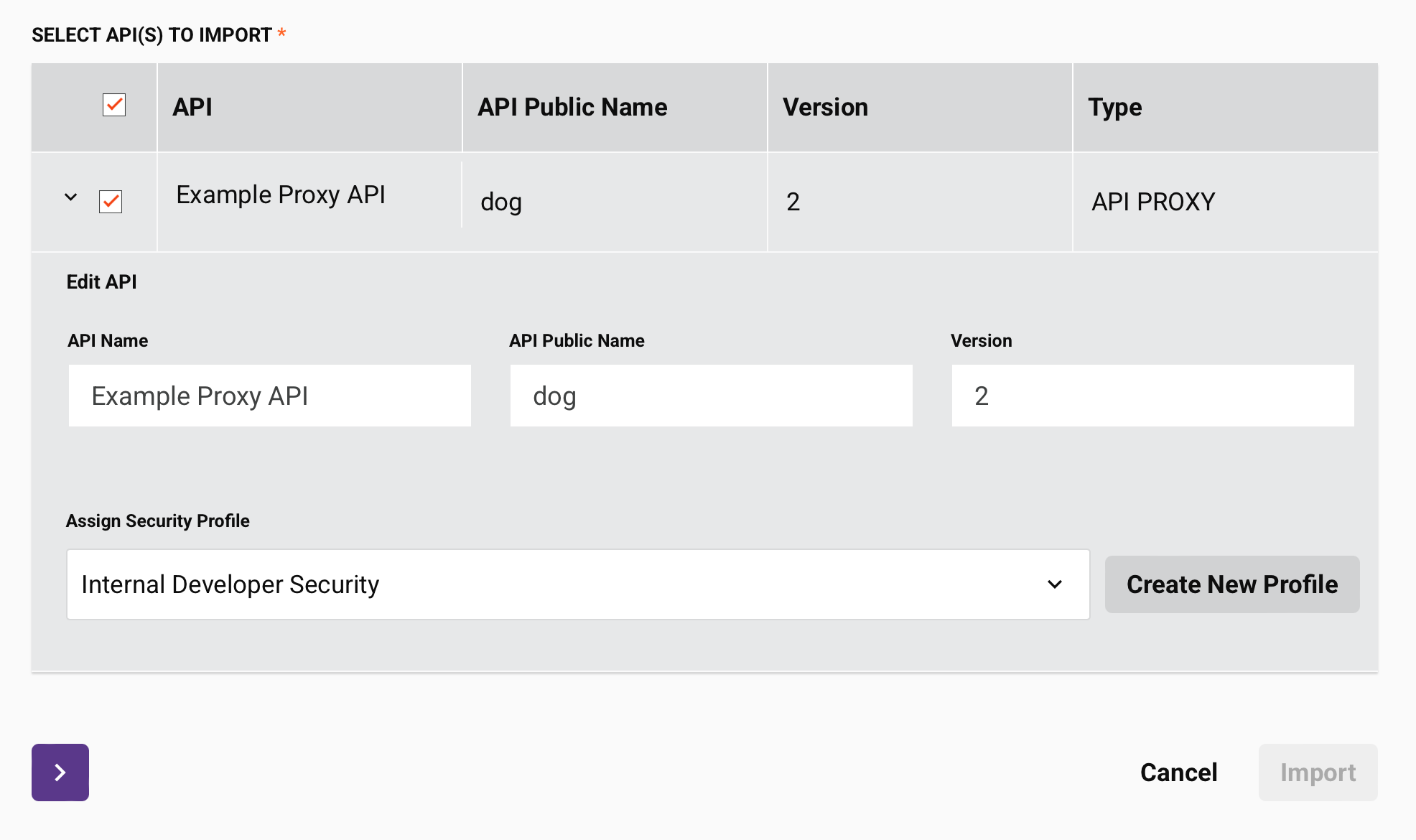
Click the caret to view and configure additional settings for each API.
-
API Name: Shows the current name of the API. Use the text box to change the name of the API.
-
API Public Name: Shows the current Service Root of the API service URL. Use the text box to change the Service Root to be used for the API. The following special characters are allowed:
._~()$;/?:@=&'!*,+- -
Version: Shows the current version of the API. Use the text box to change the version to be used for the API.
-
Assign Security Profile: Optionally, use the menu to select an existing security profile that will be used to restrict access for consumption of the API. You can type any part of the security profile name into the menu to filter the list of security profiles. The menu results are filtered in real time with each keystroke. If no security profile is selected, anonymous authentication is used. Depending on the Harmony organization's policies, you may need to assign a security profile to save the API.
Note
When importing an API, you can assign only a single security profile to that API. After you import the API, you can edit the API to assign additional security profiles.
- Create New Profile: Click to open the security profile configuration screen. After you create the new profile, it becomes available in the Assign Security Profile menu.
-
Next: After you select an API to import, click the next button to move to the next screen.
-
Cancel: Click to return to the APIs page.
-
Import: This button is disabled until you complete step 2.
Step 2: Select APIs to publish
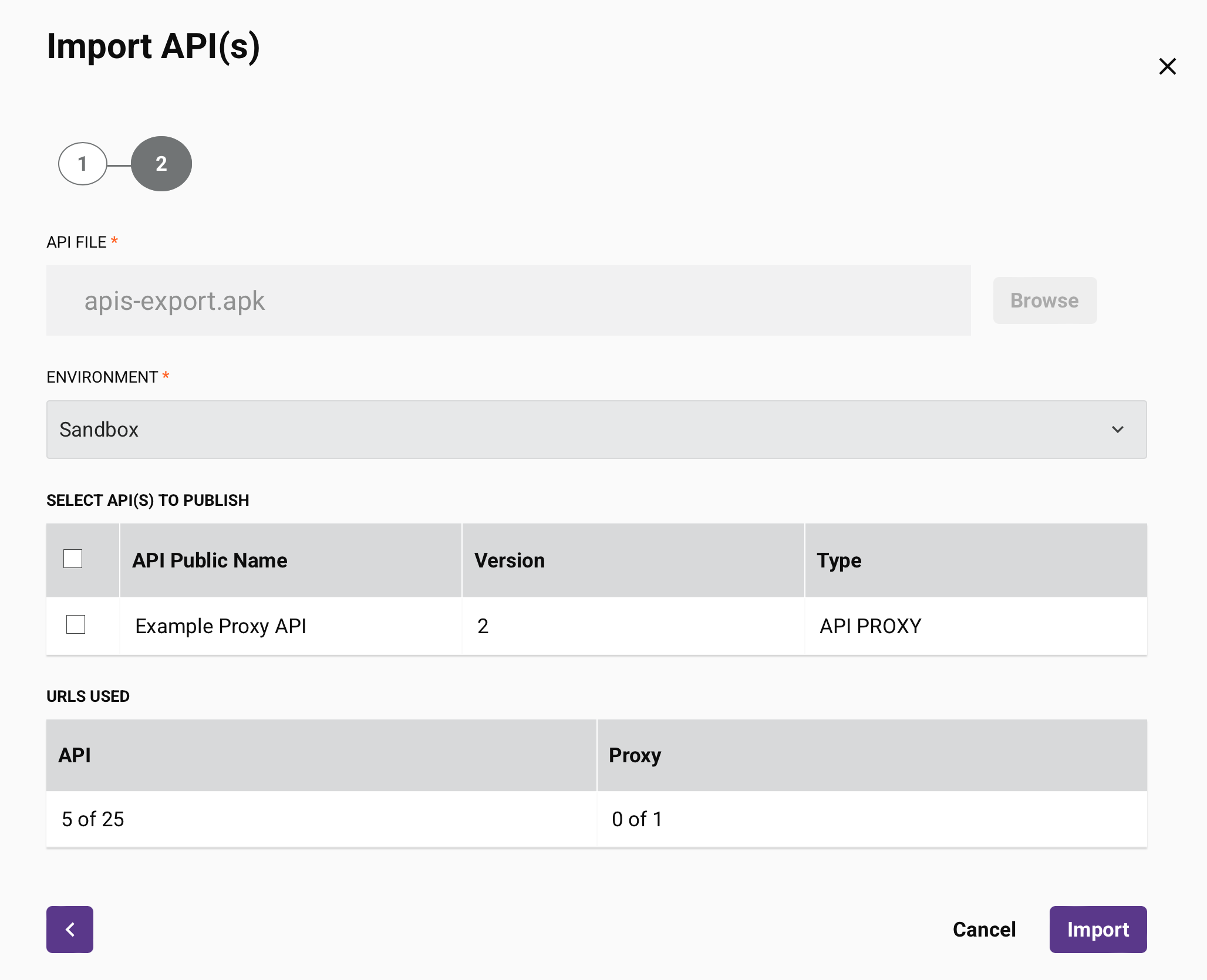
In this step, you choose which APIs to publish immediately and review the URL count that will be used after the import is completed.
Note
The API file and Environment fields are disabled in this step. To make changes, return to step 1.
-
Select: Optionally, select the APIs to be published when imported. API Manager saves unselected APIs as draft APIs. Use the checkbox in the header column to select all APIs at once. As you select APIs, the values under URLs used update accordingly.
-
API Public Name: Shows the name of the API.
-
Version: Shows the version of the API, as entered during API configuration.
-
Type: Shows the type of API (custom, OData, or proxy).
-
URLs used: Shows the number of published API URLs that will be counted against your Harmony subscription allowance after the import is completed.
-
API: Reflects the number of API URLs that will be in use (after the import is completed) out of the total number of API URLs allowed by the organization's subscription. Currently used API URLs consist of those used by published custom and OData APIs and their published clones. Draft APIs do not count as in-use API URLs.
-
Proxy: Reflects the number of proxy API URLs that will be in use (after the import is completed) out of the total number of proxy API URLs allowed by the organization's subscription. Currently used proxy API URLs consist of those used by published proxy APIs and their published clones. Draft APIs do not count as in-use proxy API URLs.
-
Back: Click the back button to return to step 1.
-
Cancel: Click to return to the APIs page.
-
Import: Click to import the selected APIs. The supporting projects, operations, and entities must exist in the destination environment for the APIs to function properly.
When you click Import, a message indicates whether the APIs were successfully imported. If successful, API Manager publishes the selected APIs in the new environment, making them immediately accessible. API Manager saves APIs that you did not select for publishing as drafts in the new environment. These draft APIs are not accessible in the new environment until you publish them individually.
-
Dismiss: Click to return to the APIs page.